
What it does
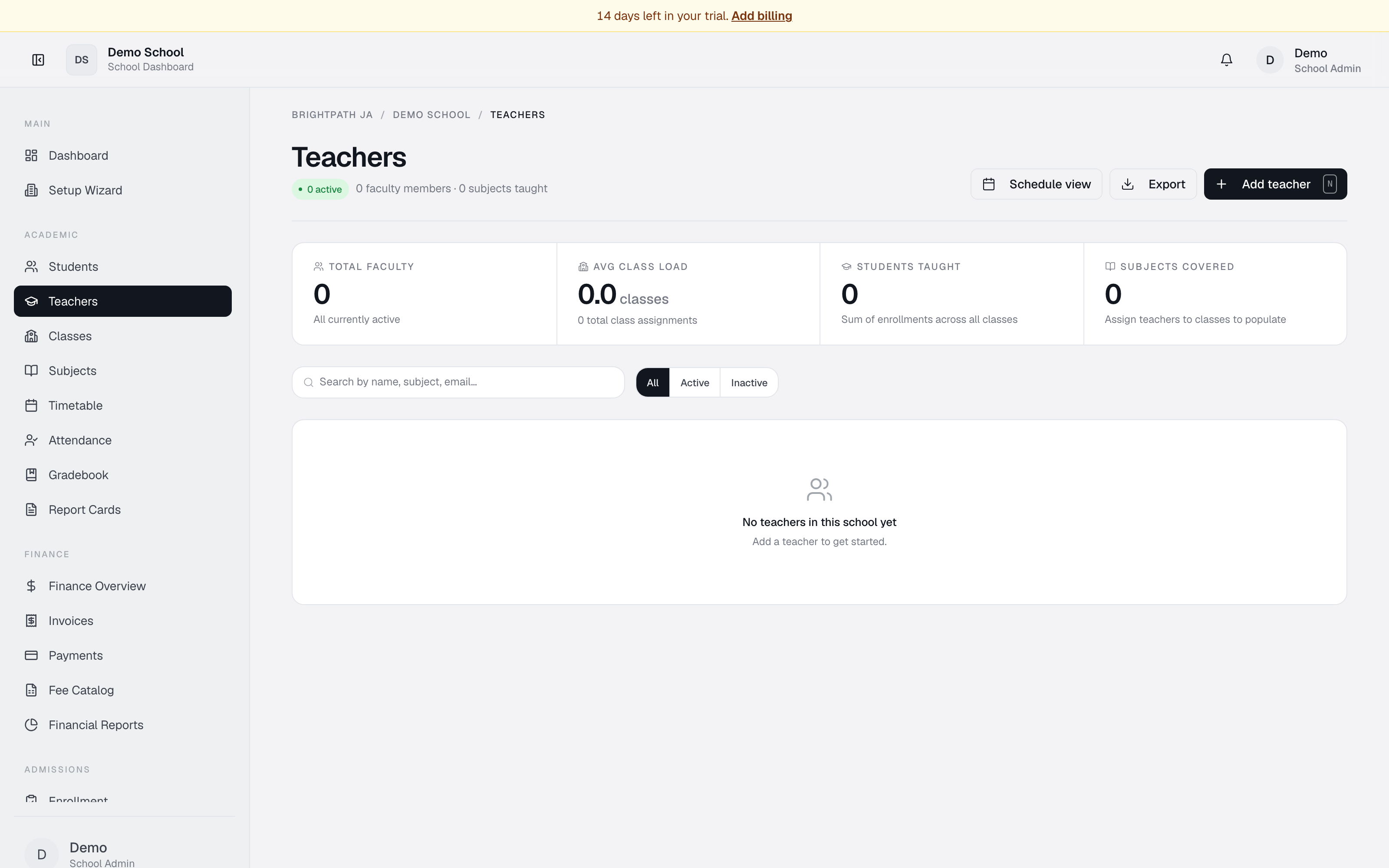
The Teachers page maintains your faculty roster and shows how many classes and students each teacher is assigned to. You can add new teachers, filter by employment status or subject, export the roster, and jump to the timetable to manage their schedules.
Who uses it
- Principal / School Admin — monitor faculty count, subject coverage, and teaching assignments.
- Registrar — add teachers; assign them to classes and departments.
Common tasks
View the teacher roster
The page opens with a grid of teacher cards.
- Total faculty — active vs. inactive teacher counts.
- Avg class load — average number of classes per teacher.
- Students taught — total enrollments across class assignments.
- Subjects covered — unique subjects across the school.
Each card shows name, job title, subjects taught (up to 4 pills), and counts for students/classes/subjects.
Add a new teacher
- Click Add teacher in the top right.
- Fill in:
- First name and Last name (required).
- Email address (required — the teacher receives an invite to activate their account).
- Department (optional).
- Job title (optional).
- Click Save teacher. The teacher receives an email to set up their login.
Search and filter
- Search — type a name, subject, email, or job title.
- Status pills (All / Active / Inactive) — filter by employment status.
- Subject chips — click a subject to show only teachers who teach it. Click All subjects to reset.
Export the teacher list
- Click Export in the top right.
- A CSV downloads with all visible teachers (respecting active filters).
Columns: Name, Email, Title, Status, Subjects, Classes, Students, Hire date.
Open the timetable to assign classes
- Click Schedule view in the top right.
- A dialog explains that teacher schedules are managed in Timetable.
- Click Go to Timetable to assign teachers to class meetings.
Troubleshooting
- "No teachers in this school yet" — click Add teacher to create the first record.
- Teacher card shows "inactive" — their employment status is inactive. Edit their profile to reactivate.
- Search returns no results — try a shorter keyword or clear the search.
- Subject pills show "No assignments" — the teacher hasn't been assigned to classes yet. Assign them in Classes or Timetable.
Limits & known issues
- Email is required for every teacher (used for invites).
- A teacher's subject list is derived from the classes they're assigned to — assign them to classes to populate their subjects.