
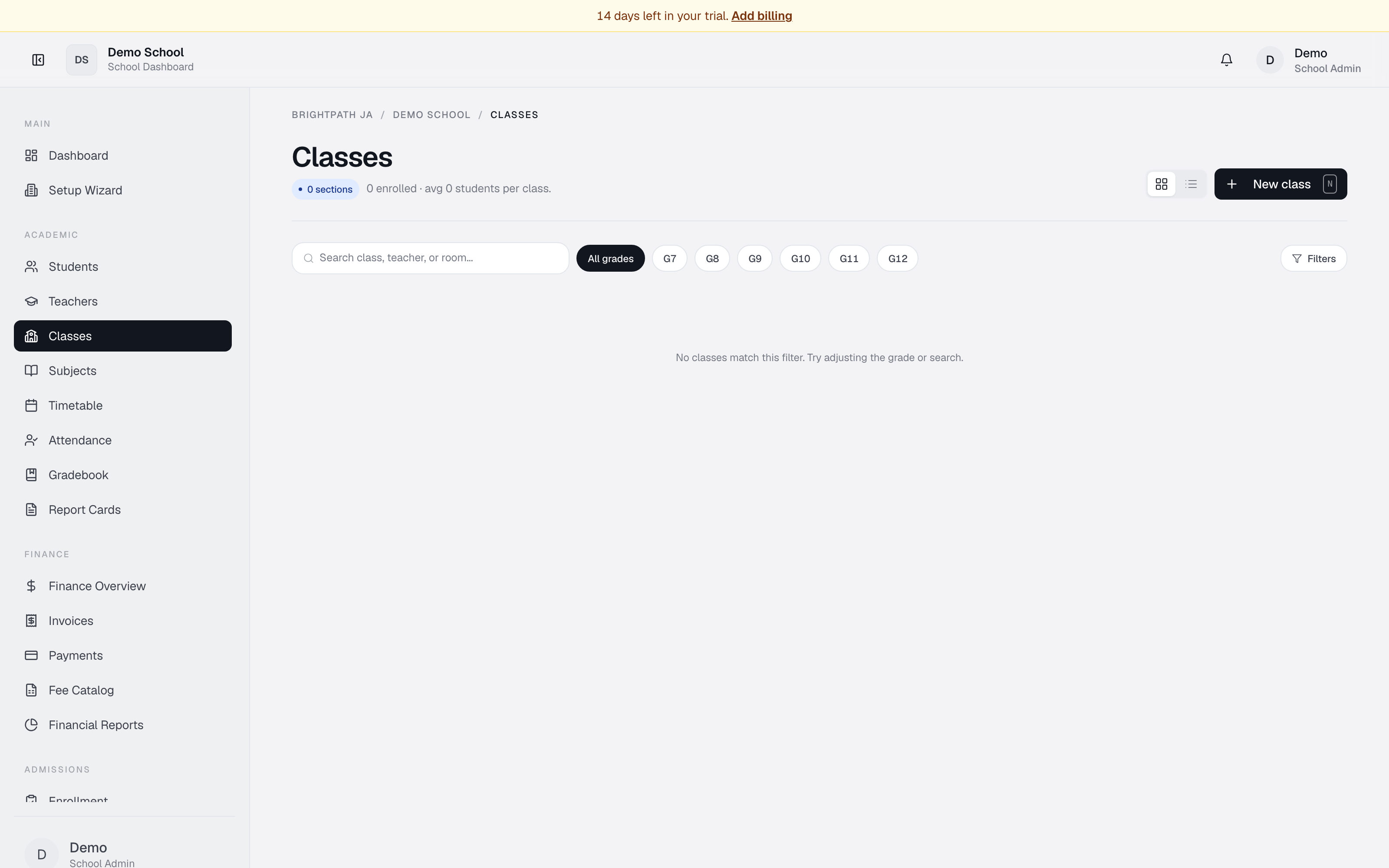
What it does
The Classes page lets you organize students into classes, assign teachers as form tutors, set capacity limits, and monitor enrollment, attendance, and academic progress for each class. View in grid or list, search by class/teacher/room, and filter by the grade labels found in your actual class names.
Who uses it
- Principal / School Admin — monitor class enrollment, form tutor assignments, and class-level performance.
- Registrar — create classes, enroll students, assign teachers, manage capacity.
- Teacher — view their own assigned classes, enrollments, and performance.
- Homeroom teacher — manage their form class.
Common tasks
View all classes
The page opens in grid view. Each card displays:
- Class name (e.g. "Grade 10A") with a colored left border for grade level.
- Room/location (if assigned; otherwise "Location TBD").
- Students — enrolled / capacity.
- Subject.
- Avg attendance — latest rate (green ≥95%, orange 88–95%, red <88%).
- Avg score — latest academic average.
- Form tutor — assigned teacher.
Create a new class
- Click New class in the top right.
- Fill in:
- Class name (e.g. "Grade 9 Science A").
- Subject (required).
- Form tutor (optional).
- Term (optional; defaults to the current term when available).
- Capacity (optional).
- Room/location (optional).
- Click Create class.
Switch between grid and list view
Click the Grid view / List view toggle in the top right.
Search and filter
- Search — class name, teacher name, subject, or room/location.
- Grade buttons — shown only for grade labels found in your class names, such as
G10,Grade 7B, or6th Form. - Filters — combine teacher and subject filters with grade buttons and search.
Enroll students or take attendance
- Use Students for student enrollment records.
- Use Attendance to select a class roster and mark attendance.
- Use Gradebook or Grade Entry to work with class rosters for marks.
For period-by-period teacher assignments, use Timetable.
Monitor class performance
- Avg attendance — hover for recent sessions.
- Avg score — latest recorded grade.
Troubleshooting
- "No classes match this filter" — try All grades or create a new class.
- Attendance shows "—" — no attendance recorded yet for the class.
- Average score shows "—" — no grades recorded yet.
- Form tutor shows "Unassigned" — edit the class and assign a teacher.
- Cannot find a student in class tools — add them in Students first, then manage roster-specific workflows from Attendance, Gradebook, or Grade Entry.
Limits & known issues
- Capacity is optional — classes without a limit can enroll unlimited students.
- Subject is required for new classes in the current dialog.
- Class cards are summaries; use Attendance, Gradebook, Grade Entry, Students, or Timetable for roster and scheduling workflows.