
What it does
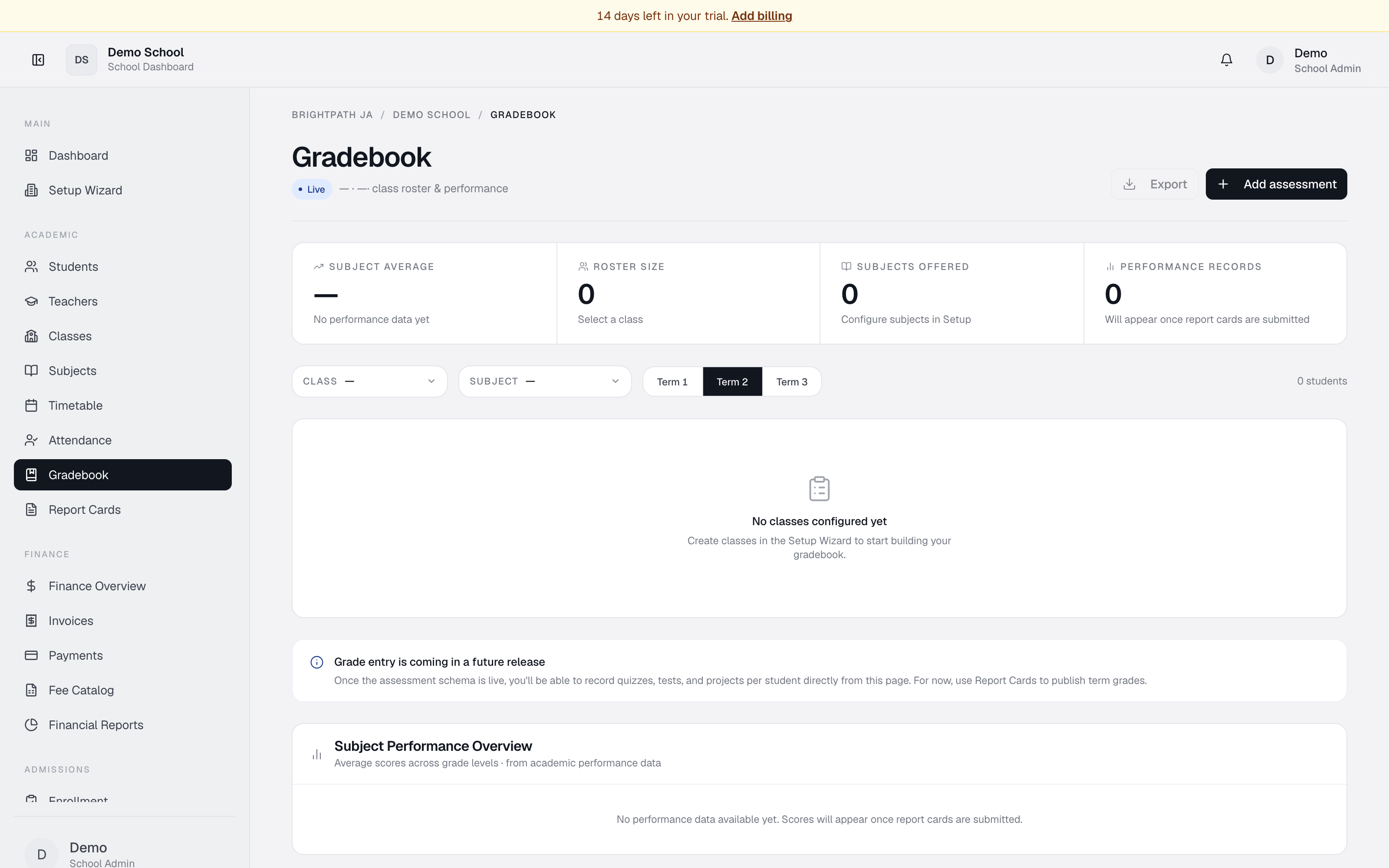
The Gradebook displays a class roster for a selected class and subject, with filters by term. You can see who's enrolled, their admission numbers, and grade levels. A Subject Performance Overview table shows average scores by subject across all grade levels, helping you spot strong and weak areas.
Grade entry is not yet available on this page — once the assessments module ships, you'll record quiz, test, and project scores directly here. For now, grades are entered and published via Report Cards.
Who uses it
- School Admin / Principal — view and manage all gradebooks across grades.
- Head of Department — view gradebooks for their department's subjects.
- Teacher — view their class gradebooks.
- Student — view their class roster and performance (read-only).
Common tasks
Open the Gradebook
- Click Gradebook in the sidebar.
- Page defaults to the first class and first subject.
- Three term buttons appear (Term 1, Term 2, Term 3). Click the term you want.
Select a class
Click the Class dropdown and choose. The roster updates.
Select a subject
Click the Subject dropdown and choose. The Subject average KPI updates to show the mean across all grade levels.
View the class roster
The roster table shows row number, student name (with initials avatar), admission number, grade level, and enrolment status.
Review subject performance across all grades
Scroll to Subject Performance Overview. Rows are grade levels; columns are subjects. Cells show average scores (green ≥85, red <60, neutral 60–84). Empty cells (—) mean no scores recorded for that grade × subject.
Export
Click Export to download the current roster + term as CSV.
Troubleshooting
- Subject average shows "—" — no report cards submitted yet for that subject.
- Roster empty ("No students enrolled in this class") — enrol students via Students or Classes.
- "No classes configured yet" — create a class first.
- Performance Overview mostly empty — expected early in the year; populates as report cards are submitted.
- "Can I enter grades here?" — not yet. Use Report Cards.
Limits & known issues
- Grade entry is not yet available on this page. Read-only.
- The Subject Performance Overview appears once at least one report card has been submitted.
- Term selector is fixed to Term 1, Term 2, Term 3. Custom terms not yet supported.