
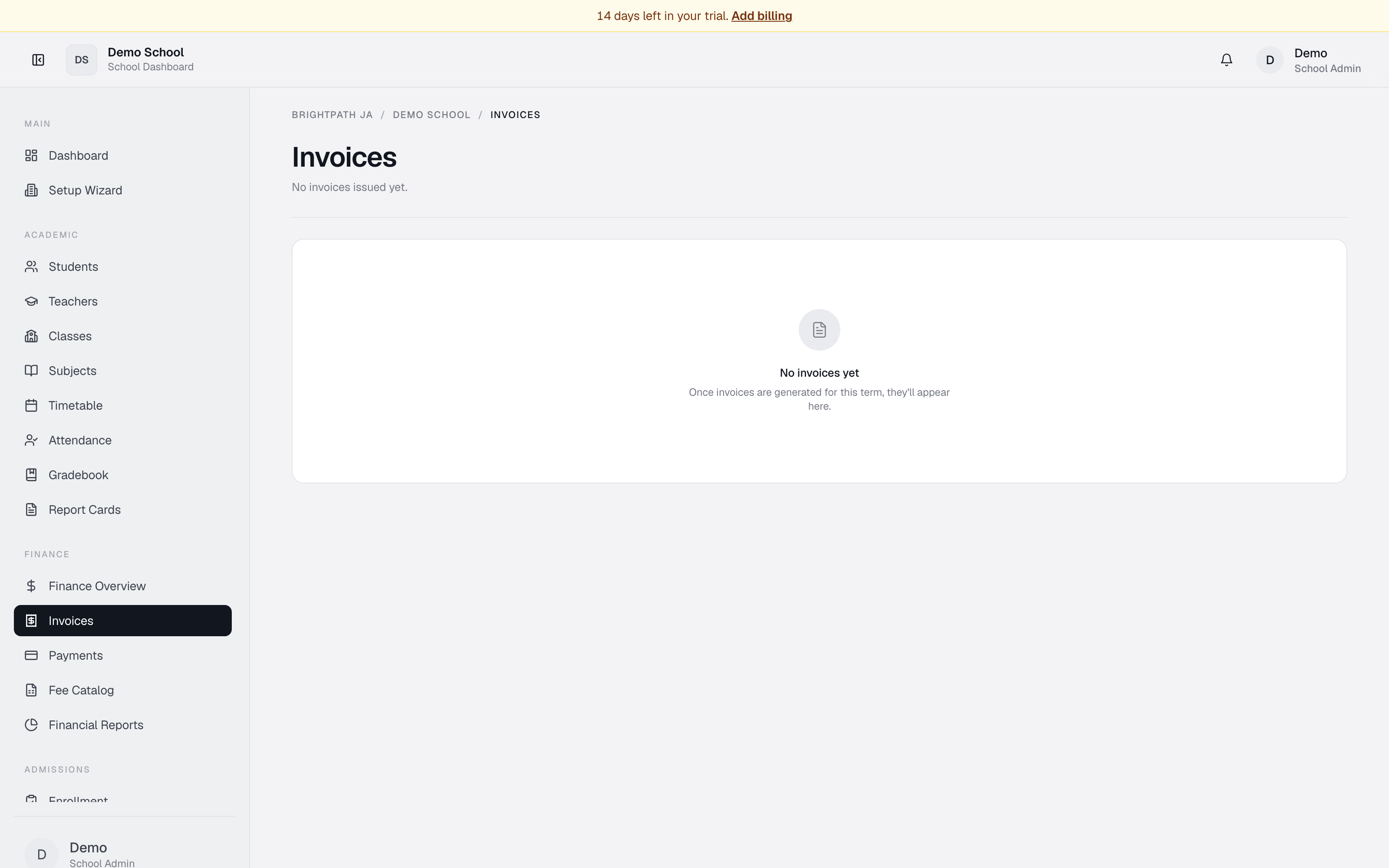
What it does
The Invoices page displays all invoices issued to students and guardians. View a detailed invoice including line items, totals, payment history, student info, and an activity timeline. Each invoice has one of three statuses: Paid, Unpaid, or Overdue.
Who uses it
- Bursar — primary user. Creates, views, prints, and marks invoices as paid; sends reminders.
- Principal / School Admin — reviews invoices and collection status.
- Parent — views invoices for their child(ren) via the Parent Portal.
- Auditor — verifies invoice details and payment records.
Common tasks
Create an invoice
- Click New invoice in the top right (or from the empty state).
- Select a student, optional guardian, due date, and at least one line item.
- Click Create Invoice.
Use Back to Payments if you arrived from the payments workflow.
View an invoice
The most recent invoice loads automatically. To switch:
- Click All invoices in the top right — the full list slides in.
- Click any row.
- Click All invoices again to collapse.
Check status and details
Header shows invoice number (e.g. INV-2025-001), status badge (Paid green / Unpaid yellow / Overdue red), issue date, due date.
Scroll for: From (school), Billed To (guardian or student), Line items (description, qty, unit price, amount), Totals (subtotal, tax, discount, total, paid, balance due), and Payment notes.
Check payment history
Scroll to the Activity sidebar on the right — a timeline of created, issued, payments recorded (amount, date, method), overdue flags, and paid-in-full.
Send a payment reminder
Click Send reminder in Quick Actions (right sidebar). An email goes to the guardian.
Record a payment
If the invoice isn't fully paid, click Record payment in Quick Actions. Enter method, amount, and date.
Mark invoice as paid
If you've received payment and don't need to record it as a transaction, click Mark paid in the top right to close the balance.
Print or download
Click Print or PDF in the top right.
Void an invoice
For an invoice created in error, click Void invoice (red button in Quick Actions). This removes the balance and marks it cancelled.
Troubleshooting
- Invoice shows Unpaid but I recorded payment — refresh the page; payments are matched by amount and date.
- Email reminder not working — verify the guardian's email is set on the student record.
- Can't void this invoice — only unpaid or partially paid invoices can be voided. Paid invoices need a credit note or refund.
Limits & known issues
- One invoice at a time — no bulk editing yet.
- Void is irreversible — use with care.
- PDF/print is basic text — logos and branding customization not yet available.