
What it does
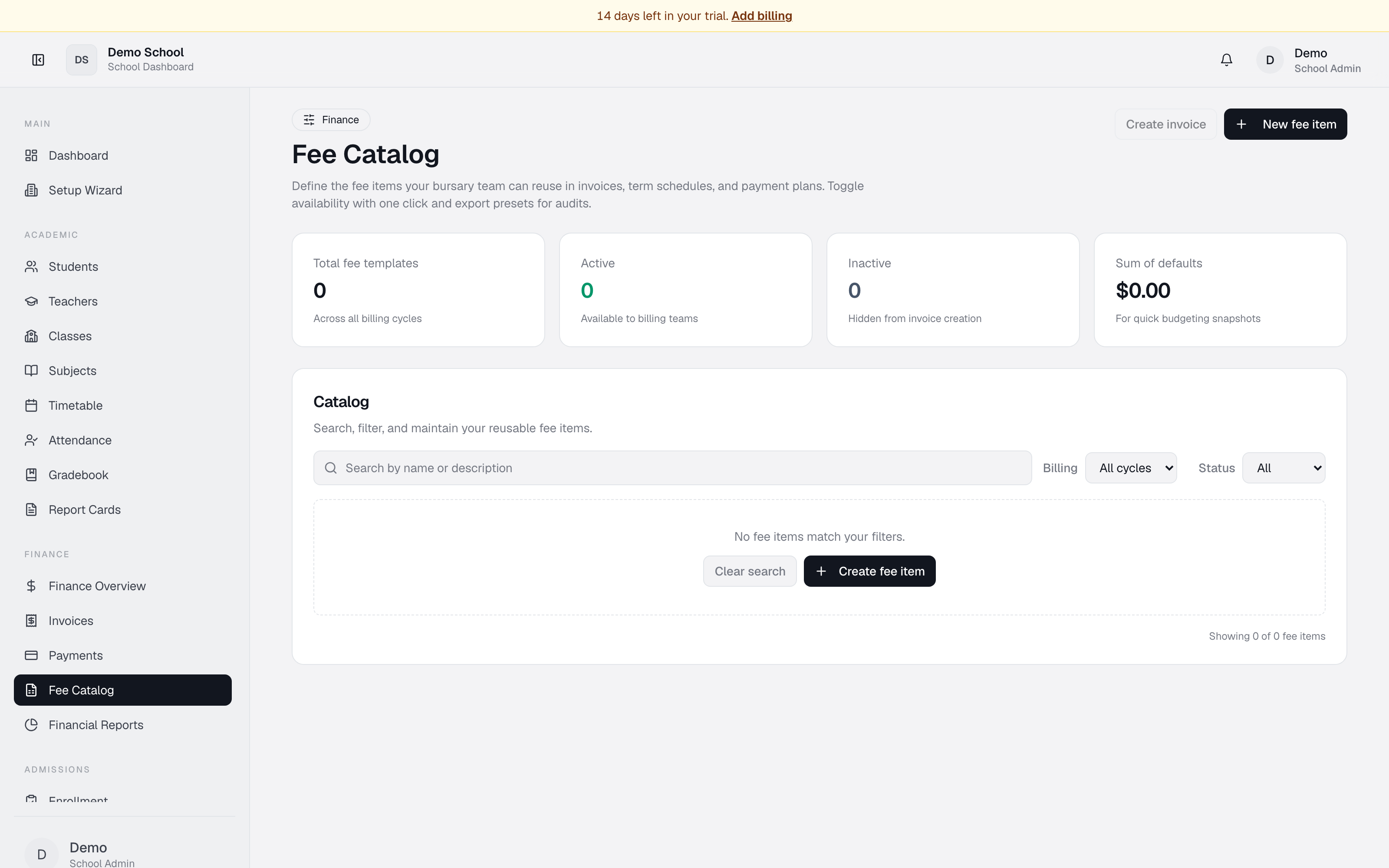
The Fee Catalog is a library of reusable fee items the bursary uses to assemble invoices quickly. Instead of typing out tuition, activity, transport, and other charges from scratch every time, you define them once here and pick them when creating invoices.
Each fee item tracks: name, description, default amount (JMD), billing cycle (one-time, monthly, term, annual, custom), and active status.
Who uses it
- Bursar — primary user. Creates, updates, and toggles fee items.
- Principal / School Admin — reviews the catalog to understand fee structure.
Common tasks
View the fee catalog
Summary cards show: Total fee templates, Active, Inactive, Sum of defaults (for budgeting).
The Catalog table lists every fee item.
Search and filter
- Search — name or description.
- Billing filter — All cycles / One time / Monthly / Per term / Annual / Custom.
- Status filter — All / Active / Inactive.
- Clear filters resets everything.
Create a new fee item
- Click New fee item in the top right.
- Fill in:
- Name (required) e.g. "Tuition – Form 2".
- Description — optional notes, e.g. "September to June".
- Default amount (required) — standard charge in JMD.
- Billing cycle — one-time, monthly, term, annual, or custom.
- Active toggle — turn on to make available for invoicing.
- Click Save.
Edit a fee item
Click the row to open the edit dialog. Update fields and Save. Changes apply to the template but don't modify invoices already created.
Toggle on/off
Click the Active toggle on any row. Inactive fees are hidden from invoice creation but stay in the catalog for reference.
Create an invoice using fee items
- Click Create invoice in the top right.
- Select student and guardian.
- Browse and add fee items from the catalog. Adjust amounts if needed.
- Set issue and due dates.
- Click Create.
Bulk edit or import
The UI doesn't support bulk edit yet. For CSV migration of an existing pricing list, email help@brightpathja.com — we can help.
Troubleshooting
- Can't find a fee item — check the filters; if it's inactive, switch the status filter to Inactive or All.
- Item shows inactive when I need it active — click the Active toggle.
- Can't create an invoice — at least one Active fee item must exist.
- Amounts not updating in old invoices — defaults are templates only; changing the template doesn't modify invoices already issued.
Limits & known issues
- No bulk edit UI; single edits via the dialog only.
- No import/export UI — contact support for CSV migration.
- Deleting a fee item does not delete invoices that used it; historical invoices remain valid.
- No permanent delete option for audit purposes — deactivate instead.