
What it does
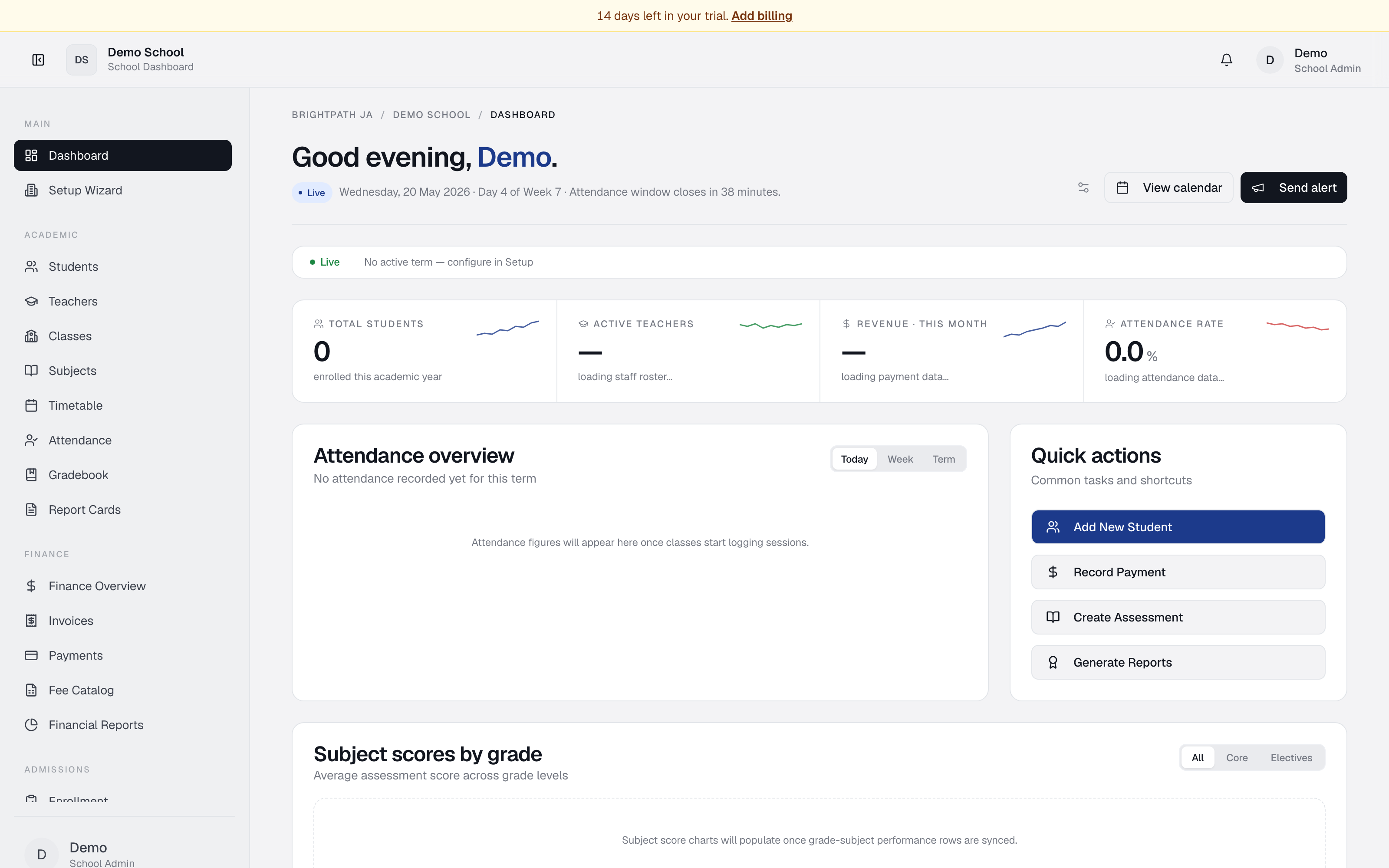
The Dashboard is your starting point each day. It displays live key performance indicators (KPIs), attendance summary, quick actions for enabled modules, academic performance trends, and upcoming events. All widgets refresh automatically as students enroll, staff clock in, and payments arrive.
Who uses it
- School Admin / Principal — overview of enrolment, staffing, revenue, and attendance rates across the school.
- Bursar — monthly revenue, outstanding invoices, and payment activity at a glance.
- Teacher — quick links to attendance, gradebook, and today's timetable.
- Student — personal timetable links and report card shortcuts.
- Parent — attendance for their child, invoices, and payment shortcuts.
Common tasks
View key metrics
Look at the coloured cards near the top of the page. They show total students enrolled, active teachers, revenue collected this month, and today's attendance rate. Charts update live.
Check overdue invoices
If any invoices are past due, a red alert banner appears below the date strip. Click Review invoices to go to the Payments module.
Understand this week's calendar
The grey strip shows the current term name, week number, and academic year. If no term is active, configure one in Setup Wizard.
Find a quick action
On the right side of the page, the Quick actions card lists enabled shortcuts such as adding a student, recording a payment, or generating reports. Hidden or disabled modules are not shown as quick actions.
Customize the dashboard
- Click the Settings icon (gear) in the top right of the page.
- A menu appears listing four widgets: Attendance overview, Quick actions, Subject scores, Events & activity.
- Toggle each on or off to show or hide it. Your choice is saved to your browser.
Review attendance split
In the Attendance overview card, look at the coloured bar. Green shows present and late attendance, red shows absent. The summary reflects the current term data available to the dashboard.
Check subject performance by grade
Scroll to Subject scores by grade. Mini cards show average test scores per grade level. Use the All / Core / Electives tabs to filter subject groups.
See upcoming events
The Upcoming events card lists term starts, term ends, and other milestones in the next 60 days. Click View calendar to see the full timetable.
Review recent activity
The Recent activity card shows the latest logins, payments received, and invoices issued. Click Audit log to see the full history.
Troubleshooting
- "No students showing" — enrol at least one student in the Students module.
- "No teachers showing" — add staff in Teachers module.
- "Attendance rate is 0%" — attendance sessions must be logged in the Attendance module before the dashboard calculates rates.
- "No upcoming events" — configure terms with start and end dates in Setup Wizard.
- "Dashboard reverted to default widgets" — browser cache was cleared, or you logged in on a different device. Re-customise using the settings icon.
Limits & known issues
The dashboard displays data for the current tenant only. Some metrics (revenue, attendance, performance) require related data to be entered in their respective modules before they appear here.