
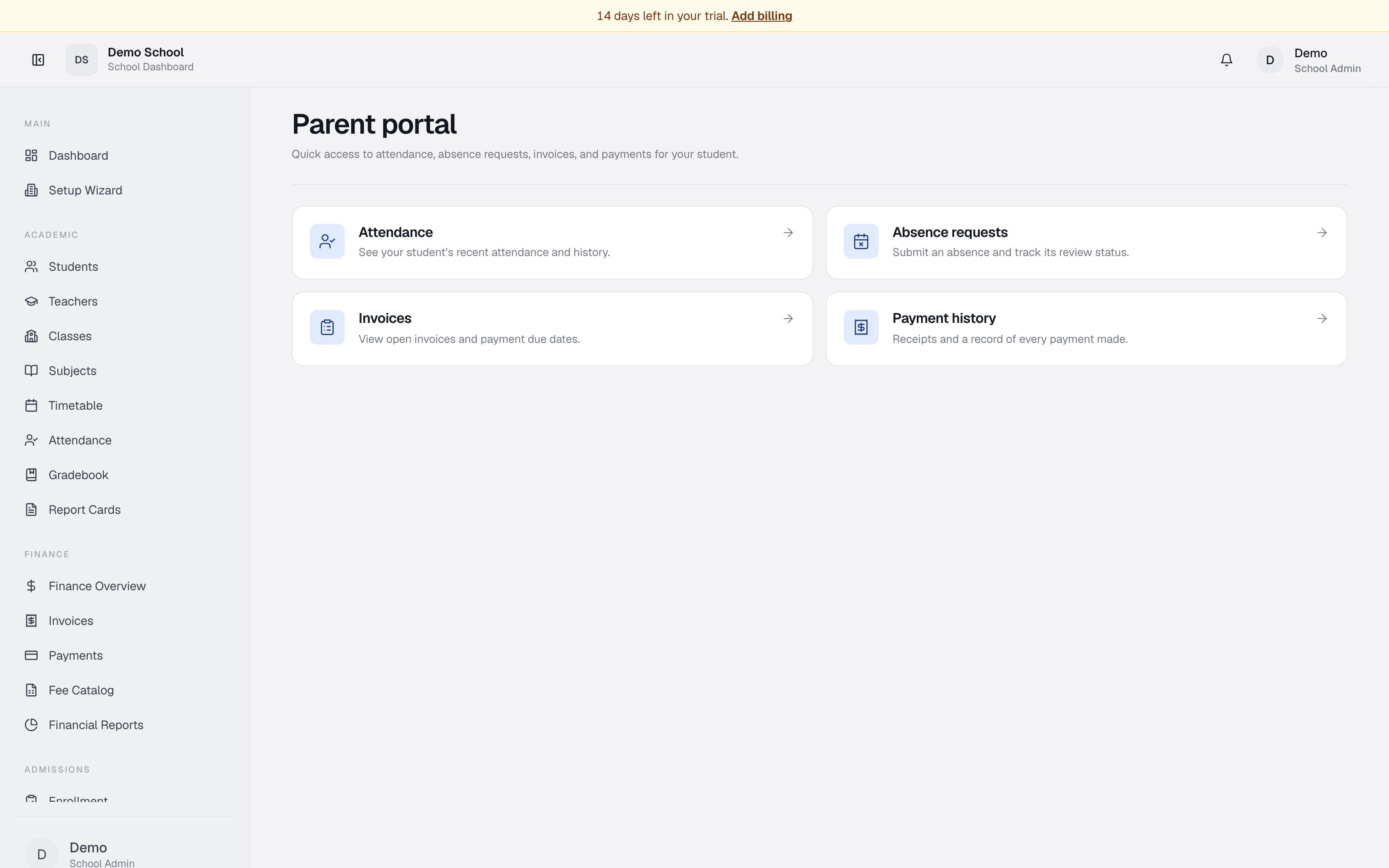
What it does
The Parent Portal is a dedicated view for parents to track their child's school life. See recent attendance, request absences, view unpaid invoices, pay online, and review payment history — without needing the school office to pull reports.
Who uses it
- Parent — primary user, monitors one or more children enrolled at the school.
Common tasks
Add a child to your account
When you first log in, the Add a child card appears if you have no linked students yet.
- Click Add a child.
- Enter the student's name or admission number.
- Answer any security questions (school-specific).
- Click Confirm.
Your child's information is now linked. You can add multiple children.
View attendance
- Click Attendance in quick links, or pick a child under Your students.
- A calendar or list shows recent attendance (present, absent, late, excused), the attendance rate (e.g. 94%), and any notes from the school.
- Scroll to see older dates.
Submit an absence request
- Click Absence requests.
- Click Request absence.
- Pick a linked student, choose today's date or a future date, add an optional reason, and choose whether you want a make-up session.
- Click Submit.
The request goes to the school office. You'll see its status (Pending / Approved / Denied) on the card.
View invoices
- Click Invoices to see all unpaid and paid bills.
- Each invoice shows amount due, due date, description, and status (Open / Overdue / Paid).
- Click an invoice to see the itemized charges.
Pay online
- From Invoices, find an open bill and click Pay now.
- Choose a payment method (card, bank transfer — depends on what your school enables).
- Enter details and confirm.
- You'll receive a receipt by email.
Once paid, the invoice status changes to Paid and appears in your history.
Review payment history
Click Payment history to see every payment with date, amount, invoice it covered, and receipt number. Print or download receipts for your records.
Show your child's QR code for kiosk check-in
If your school uses the kiosk:
- In Your students, find your child's card.
- Click Show QR for scanning.
- A full-screen QR code appears with your child's name and ID.
- Hold the phone up to the kiosk camera at the entrance.
The phone keeps the screen on while displayed.
Print your child's ID card
Click Print ID card — a printable card opens with photo (if available), name, grade, and student ID.
Troubleshooting
- Can't see my child — use Add a child to link them. Confirm the admission number with the school office.
- Absence request stuck on Pending — the school office hasn't reviewed it yet. Contact them to follow up.
- Payment didn't go through — check your internet and card details. If persistent, contact the school's bursar.
- QR code won't scan — increase phone brightness, hold steady 4–8 inches from camera, clean both screens. Ask the kiosk operator to enter the ID manually if needed.
- Can't add a second child — check security questions; contact the school office.
Limits & known issues
- Attendance history shows up to 12 months back.
- Absence requests can only be submitted for the current day or future dates.
- If your school hasn't enabled the Parent Portal, you'll see "Parent portal isn't enabled" — ask them to turn it on.